
Appearance
Create an invoice
To see the invoice life-cycle, refer to this diagram.
The list of invoices for a project might look similar to the following:
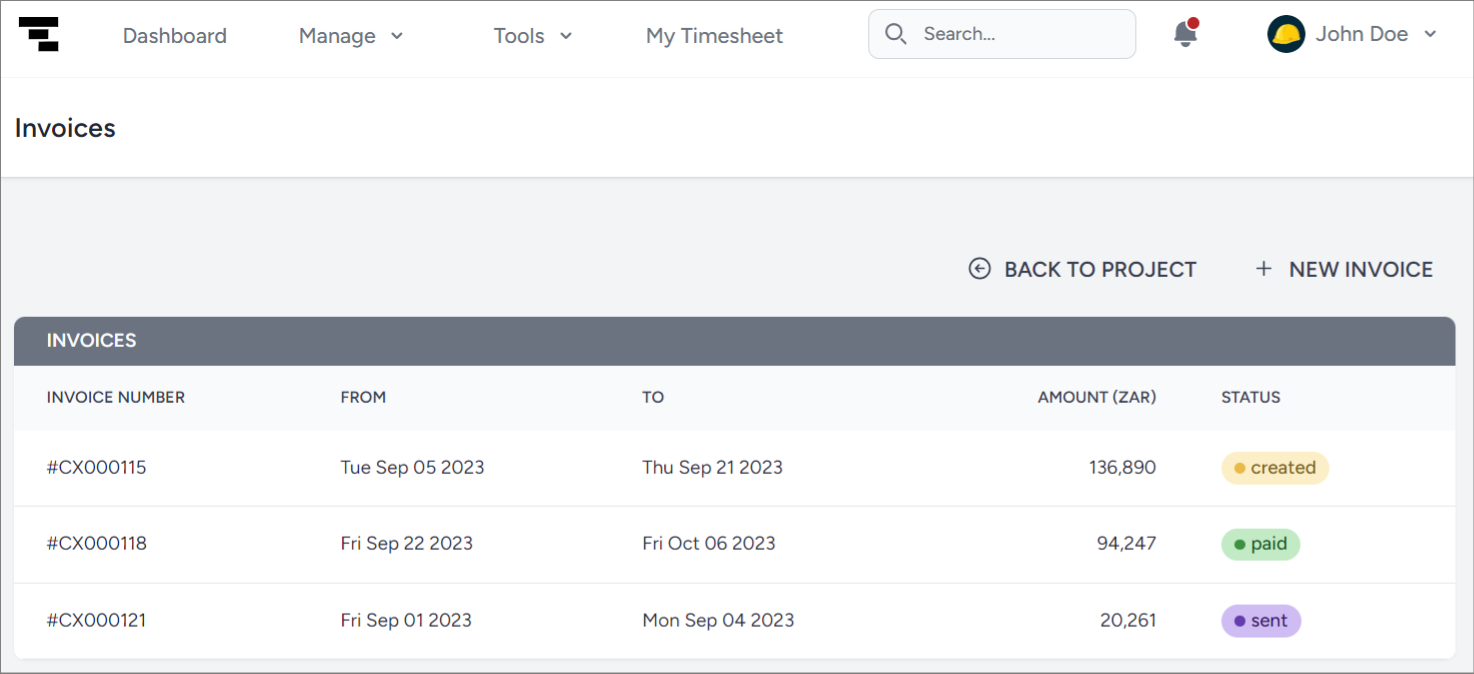
To create an invoice, complete the following steps:
- On Consult, navigate to your project by going to Manage > Projects and selecting the applicable project.
- In the left sidebar, click INVOICES
- Click + NEW INVOICE.
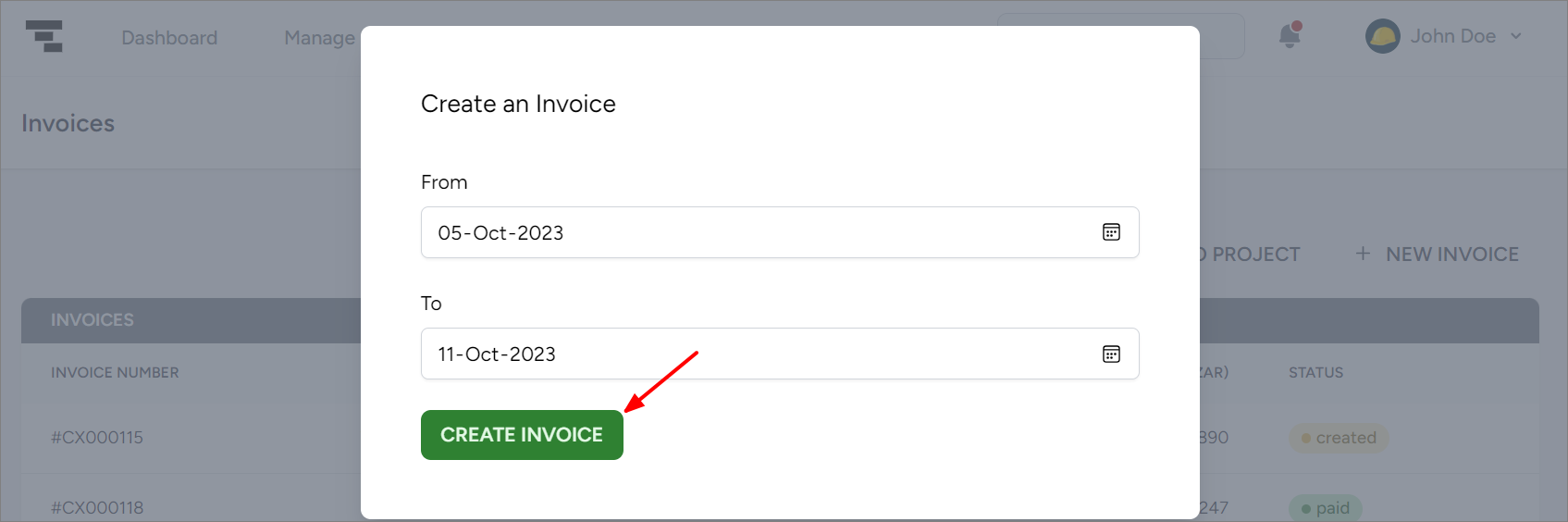
- Specify the From and To dates, then click CREATE INVOICE.
- Review the invoice details. On this page, you can do the following:
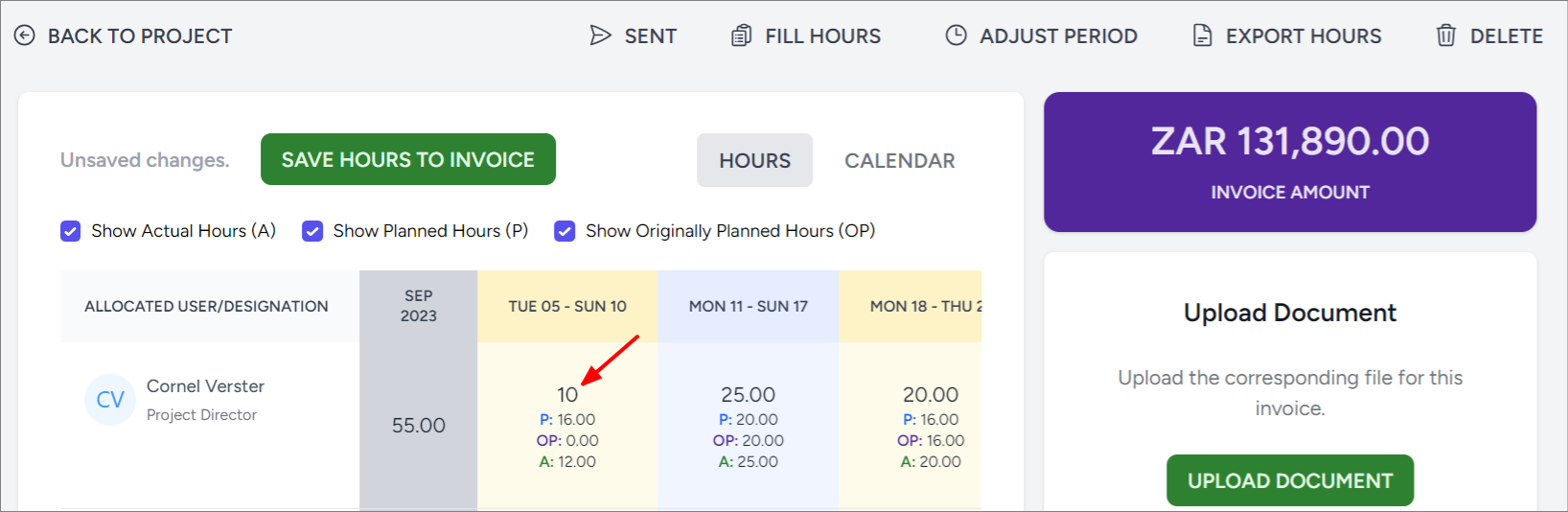
- Change the billed/invoiced hours. This is the value displayed here:
TIP
For the differences between the type of hours, refer to this page.
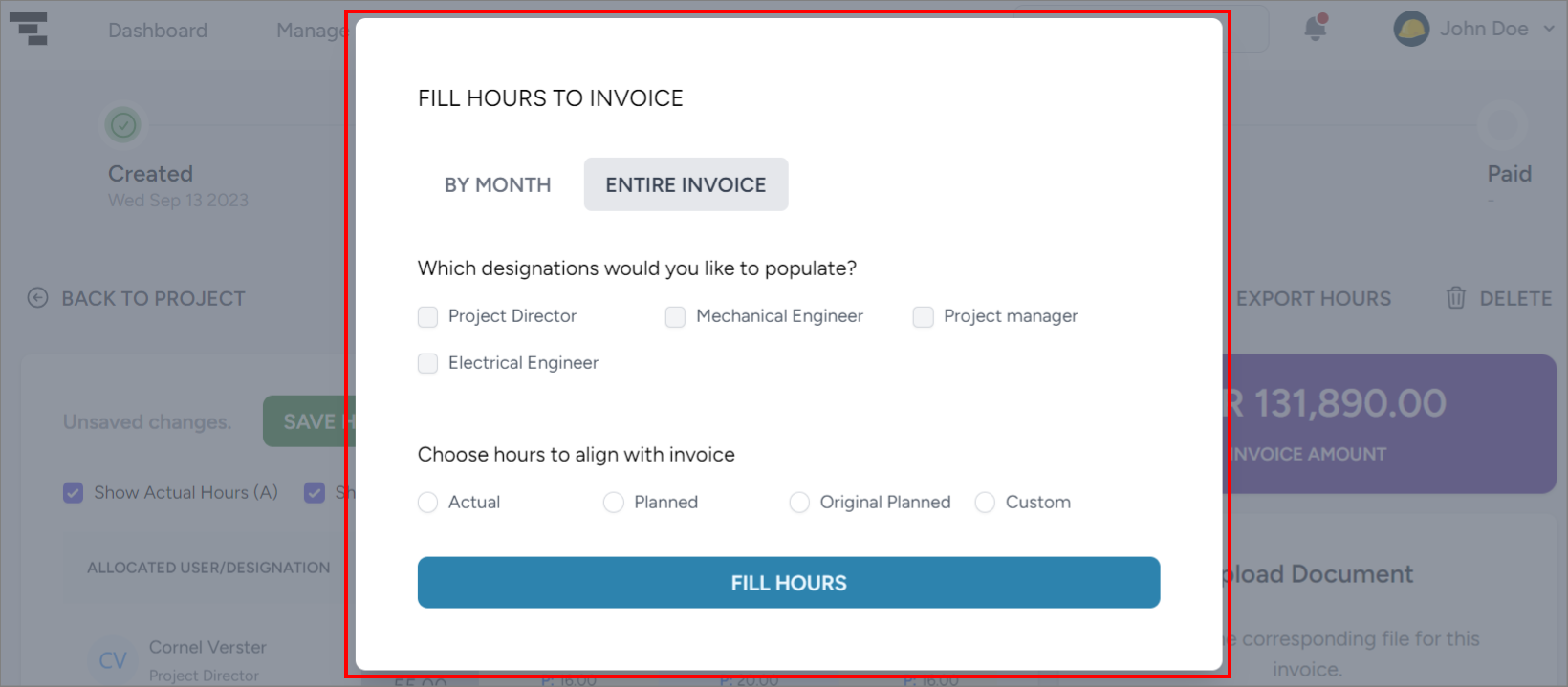
You can use the FILL HOURS functionality to easily align all the invoiced hours for a resource to a specific value for a specified month or the entire billing period:
- Change the time period for the invoice.
TIP
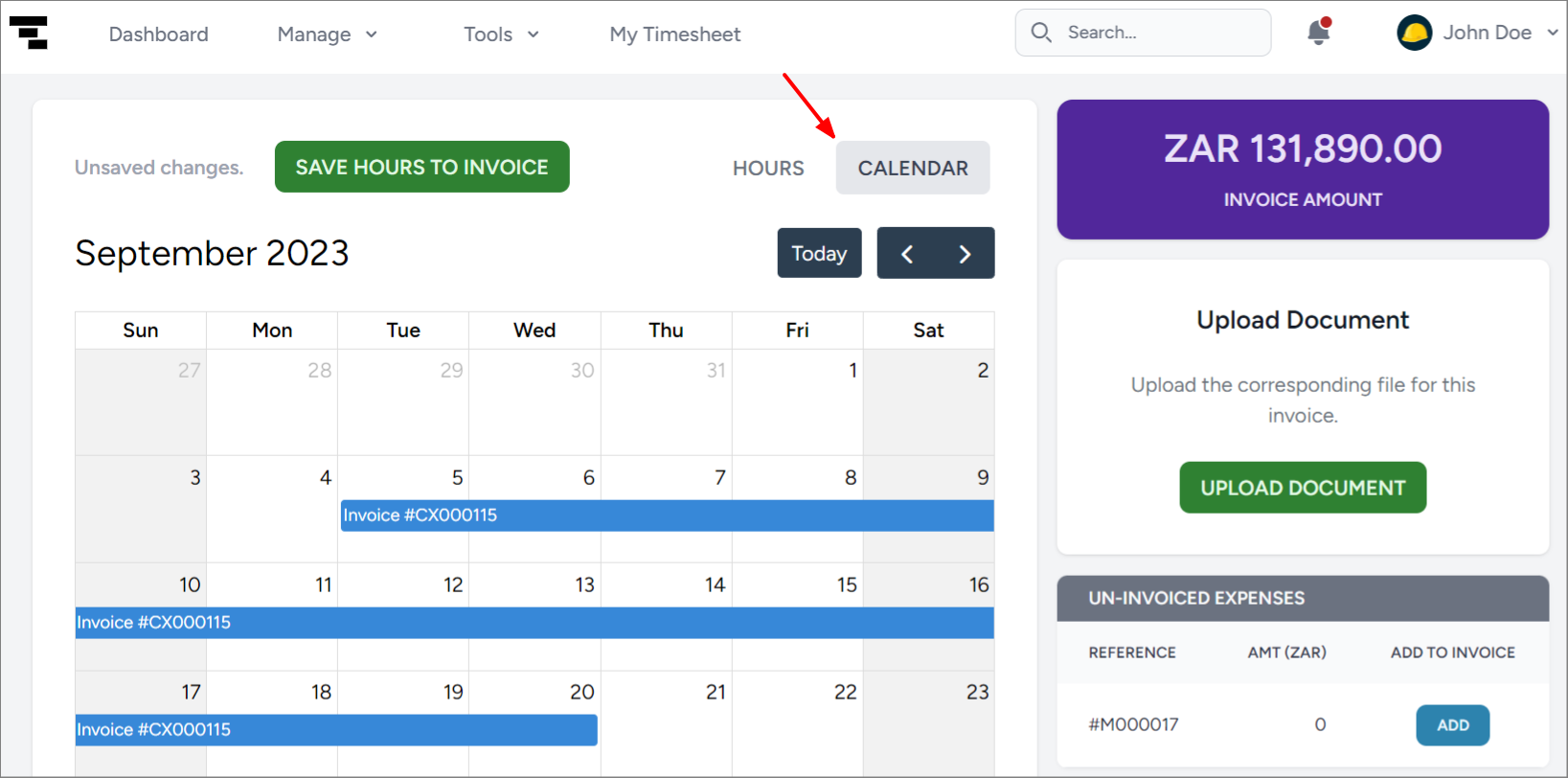
You can use the calendar view to see the start and end date for the invoice:
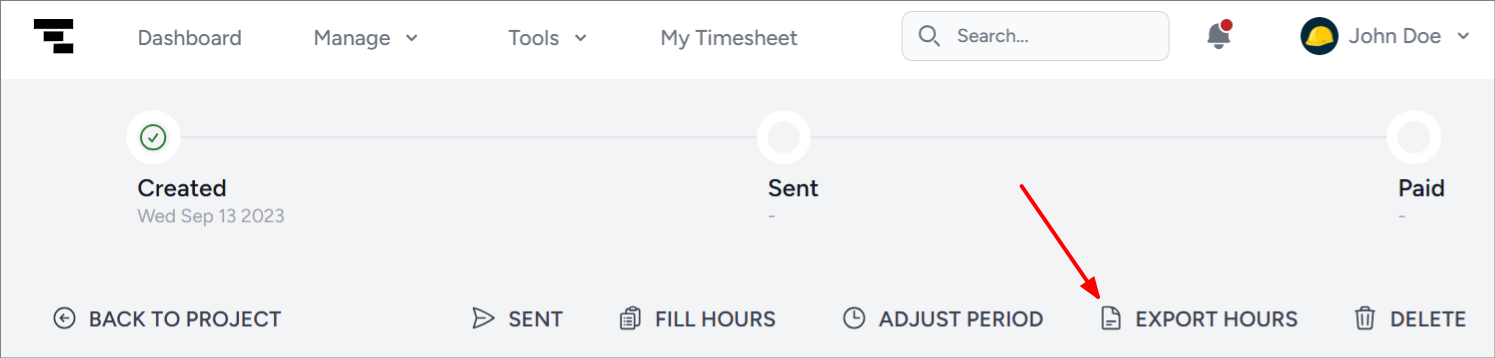
- Export hours. Once you've saved the hours for the invoice, you can export it to Excel to incorporate it into your own invoice template.
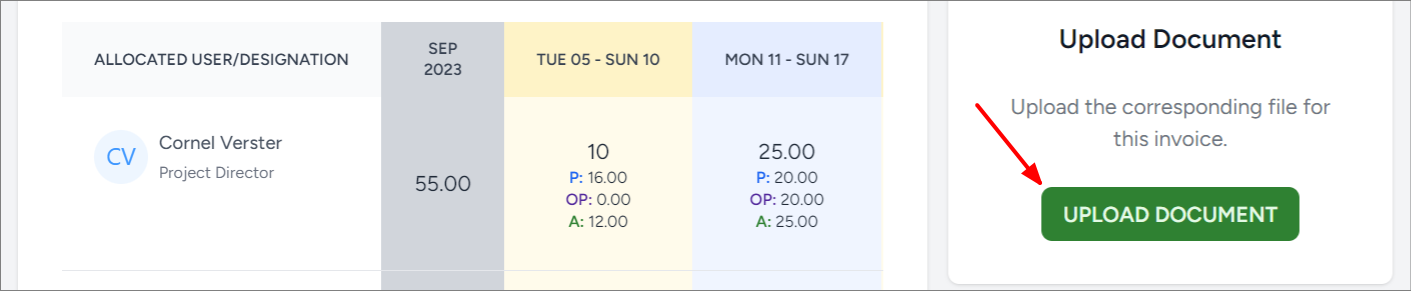
- Upload the invoice document. After you exported the Excel spreadsheet and created the invoice, you can import the invoice artifact to have it ready for reference later during the invoicing project.
- Add expenses to invoice. Decide which expenses to add to the invoice by clicking ADD:
 The expenses linked to your invoice will be underneath the hours in a section labeled ADDED EXPENSES.
INFO
For more information on expenses being pulled into invoices, refer to invoice calculation.
- Change the billed/invoiced hours. This is the value displayed here:
- Once you are happy with the invoice details, you can select EXPORT HOURS to get the data to populate your own invoice template. You can also export all the expenses as a single PDF to include with the invoice.
- After sending the invoice to the client, click SENT to update the invoice status on Consult.
- When the invoice is paid, click PAID. Otherwise, if changes are needed, click RETRACT to edit the invoice accordingly.