
Appearance
Log an expense
An expense report can contain one expense, or a group of expenses related to a specific event. To log an expense report, complete the following steps:
- Click on your name in the top right and select Expense Reports:

- Click + EXPENSE REPORT. This opens up a new expense report screen.
- Complete the details required for the report. If it's not a project-related expense, you can leave the Project selection at No Project. An example is shown below:
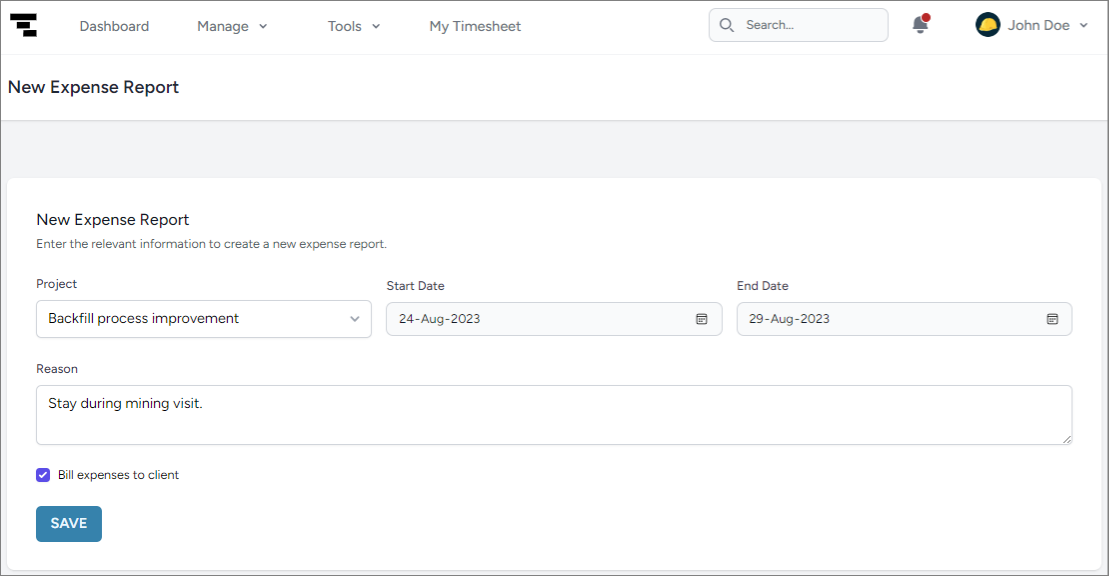
- After completing the details, click Save. Your expense report will show three options on the side:
- Overview: The reference number for your expense report.
- Expenses: The individual expense items.
- Mileage claims: Mileage accrued during this period.
- Complete each of the sections in the expense reports, which includes attaching any artifacts to the individual expenses such as pay slips.
After the expense report information has been provided, it can be submitted and the approval process kicks off. To see the workflow for the approval process, please refer to this page.